Settings
 Fast Delivery
 Payment Types


 Marketplace Product

Mfr Part # ABX00173
ARDUINO UNO Q 4GB RAM 32GB EMMC
Arduino

License: Attribution-Share Alike Wifi UNO Q Dream Lab Arduino ESP32
#UNOQDreamLab.
This DIY project demonstrates the Edge AI and IoT capabilities of the Arduino UNO Q.
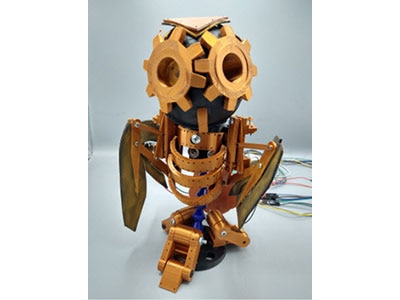
Birds and squirrels are always coming into my backyard and eating my garden vegetables and fruits. That is why I built this AI-powered robotic owl decoy to help scare them away.
The project is divided into the following building steps:
1. Build the AI model
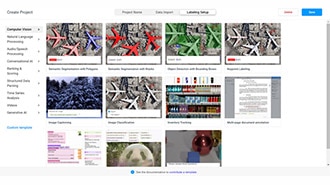
I use Edge Impulse to create and train an AI model to detect birds and squirrels.
2. Create the AI application with Arduino App Lab
I create an application using Arduino App Lab and the AI model on the Arduino UNO Q, which is connected to a camera.
The application continuously checks the camera video feed. When the AI model detects a bird or squirrel, the Arduino UNO Q sends a command over Wi-Fi to the robotic owl mechanism to start moving and scare the animal away.
3. Build the robotic owl mechanism
The robotic owl is controlled by an ESP32. The ESP32 receives the Wi-Fi command from the Arduino UNO Q and sends control signals to an L298 motor driver. The L298 drives a linear actuator, which moves the owl decoy back and forth.
EMEET C950 4K Webcam
Decoy OWL
A. For building and testing this app, I will use a network connection to the Arduino UNO Q.
The UNO Q will be connected to a USB-C hub, with the webcam connected to the hub.
The hub is powered by a USB power supply.
As shown in the following photo. I used a 3D-printed base to hold all the parts and used it to support it on a camera tripod. See the following photos for the base and the connection.
B. The following is the wiring connection for ESP32, L298N, and linear actuator
The following is the photo of the assembled OWL decoy
A- Build the AI model
I used EDGE IMPULSE to create the AI model. With EDGE IMPULSE, you can upload the AI model to the bricks folder in the Arduino UNO Q using the APP LAB.
The following is a summary of creating the AI model and uploading it to APP LAB.
Collect photos of birds and squirrels, and the background does not have any birds or squirrels
Upload photos to EDGE IMPULSE and label every photo
Create the model using YOLO Pro. Make sure that in the target you select the Arduino UNO Q
I named the model Bird_Squirrel_Detector
Select Deployment, then test the model on the computer first
Select Build. The EDGE IMPULSE will display
Built Arduino UNO Q model
Go To Arduino
Click the Go to Arduino button and follow the instructions to connect to APP LAB
If you are not familiar with EDGE IMPULSE, the following is my YouTube video explaining how to use it: www.youtube.com/watch?v=RAzyJdJ8EqU
B- Create the Arduino App for the project
Log in to Arduino App Lab.
Open the Detect Objects on Camera app from Inspiration.
Rename the app to Bird_Squirrel_Detector.
Select the Video Object Detection brick. You will see the model created with Edge Impulse, Bird_Squirrel_Detector. Download the model and then select it.
The main change to main.py is adding an HTTP command to the ESP32 when a bird or squirrel is detected. This is done with the def start_owl(): function. The function is called by: “if key.lower() in ["bird", "squirrel"]: start_owl()”
inside the def send_detections_to_ui(detections: dict): function. When a bird or squirrel is detected, the start_owl() function sends the command to the ESP32.
Enter the ESP32 IP address in this line: “ESP32_IP = “http://xxx.xxx.x.xxx"
The full main.py is available on GitHub:
https://github.com/electronicsmagic/UNO-Q-Bird-Squirrel-Detector/blob/main/main.py
The app README.md file is initially the same as the Detect Objects on Camera example. To edit it, open README.md in App Lab and select Write and Edit.
The final version of the app is named Bird_Squirrel_Detector_final. The edited section is:
“Bird_Squirrel_Detector_final
The Bird_Squirrel_Detector_final application is based on the Detect Objects on Camera example and has been modified to detect birds and squirrels using a live USB camera feed. It displays real-time bounding boxes around detected objects and, when a bird or squirrel is detected, sends a Wi-Fi command to an ESP32. The ESP32 then activates the robotic owl decoy mechanism to scare the animals away.”
9. When building the app, all necessary changes to app.yaml are made by App Lab. However, the description remains the same as the original Detect Objects on Camera app, and app.yaml cannot be edited directly in App Lab.
I used Visual Studio Code to edit app.yaml. I connected Visual Studio Code to the Arduino UNO Q using SSH.
The edited app.yaml is:
“name: Bird_Squirrel_Detector_final
description: This APP showcases real-time bird and squirrel detection using a live feed from a USB camera. When a bird or squirrel is detected, the system can trigger external devices such as a robotic owl via Wi-Fi.
ports: []
bricks:
arduino:video_object_detection:
model: ei-model-1028300-1
arduino:web_ui: {}
icon: 📽️”
10. The following folders and files are included in the app and remain the same as the original Detect Objects on Camera app. I did not change them:
WebUI-HTML brick
assets folder:
docs_asset folder
fonts folder
img folder
libs folder
app.js
index.html
style.css
C- The ESP32 sketch
The ESP32 will act as a web server.
The ESP32 sketch is available on GitHub:
https://github.com/electronicsmagic/UNO-Q-Bird-Squirrel-Detector/blob/main/ESP32BirdSquirrelServer.ino
Enter your local Wi-Fi network name (SSID) and password in the sketch.
Use the Arduino IDE to upload the sketch to the ESP32. Reset the ESP32, then open the Serial Monitor. The ESP32 will display its IP address. Use this IP address in main.py, for example:
ESP32_IP = "192.168.1.xxx"
The ESP32 can also be controlled from a web browser using its IP address on the same local network. I used this feature for troubleshooting and testing the OWL decoy mechanism.
Sketch summary:
The UNO Q sends an ON command to the ESP32 through Wi-Fi.
The ESP32 receives the command using its built-in web server.
The ESP32 controls the L298N motor driver through two GPIO pins.
The L298N drives the linear actuator, moving the OWL forward and backward.
After the programmed cycle is complete, the ESP32 stops the actuator.
Notes : The OWL decoy mechanism can be controlled directly by the Arduino UNO Q using the UNO Q microcontroller and its bridge. But in my app, I chose to use the ESP32 to demonstrate how the UNO Q can also be integrated with external devices for IoT applications.
The UNO Q will be running in Network Mode.
On the computer, open Arduino App Lab and connect to the Arduino UNO Q.
Open the Bird_Squirrel_Detector_final app.
Click Run.
The application will open a webpage.
For testing, I used bird and squirrel photos in front of the camera.
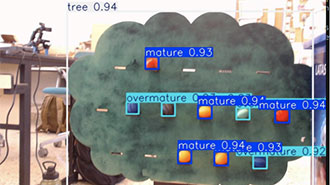
The webpage displays the detected object with a bounding box and confidence level. See the photo in the introduction.
The App Lab Python monitor displays the detected bird or squirrel, the confidence level, and the command sent to the ESP32.
The ESP32 turns ON its built-in LED and sends signals to the L298N motor driver, which drives the linear actuator forward and backward. This moves the main rod carrying the OWL decoy.
This project demonstrates how the Arduino UNO Q can combine AI-powered object detection with an ESP32-controlled robotic owl decoy. When a bird or squirrel is detected, the UNO Q sends a command over Wi-Fi to the ESP32, which activates the owl to scare the animal away.