Settings
 Fast Delivery
 Payment Types


 Marketplace Product

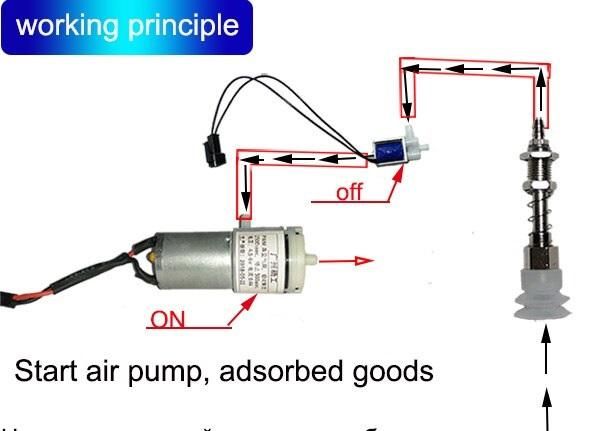
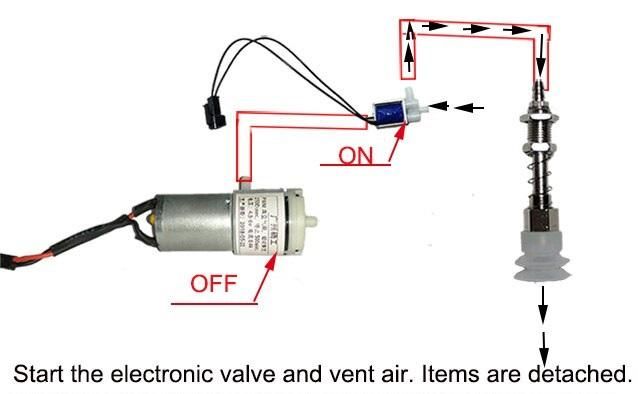
How to Control Vacuum Pump Air Pump Suction for Robotic Arm
License: GNU Lesser General Public License Microcontrollers Motors Arduino ESP32
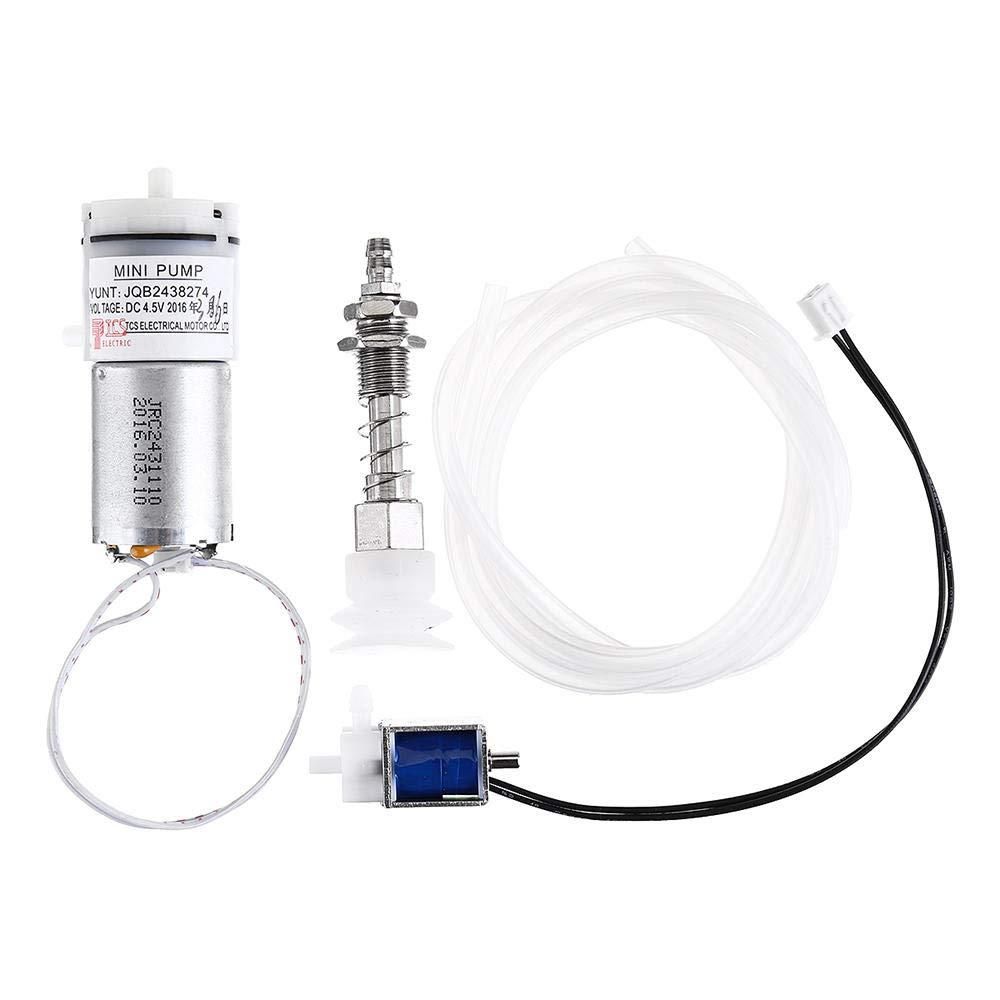
In this project, we will learn how to control a vacuum suction pump that is often used in robotics or other industrial systems.
Watch the Video!
Learn more about Visuino: What is Visuino
What You Will Need
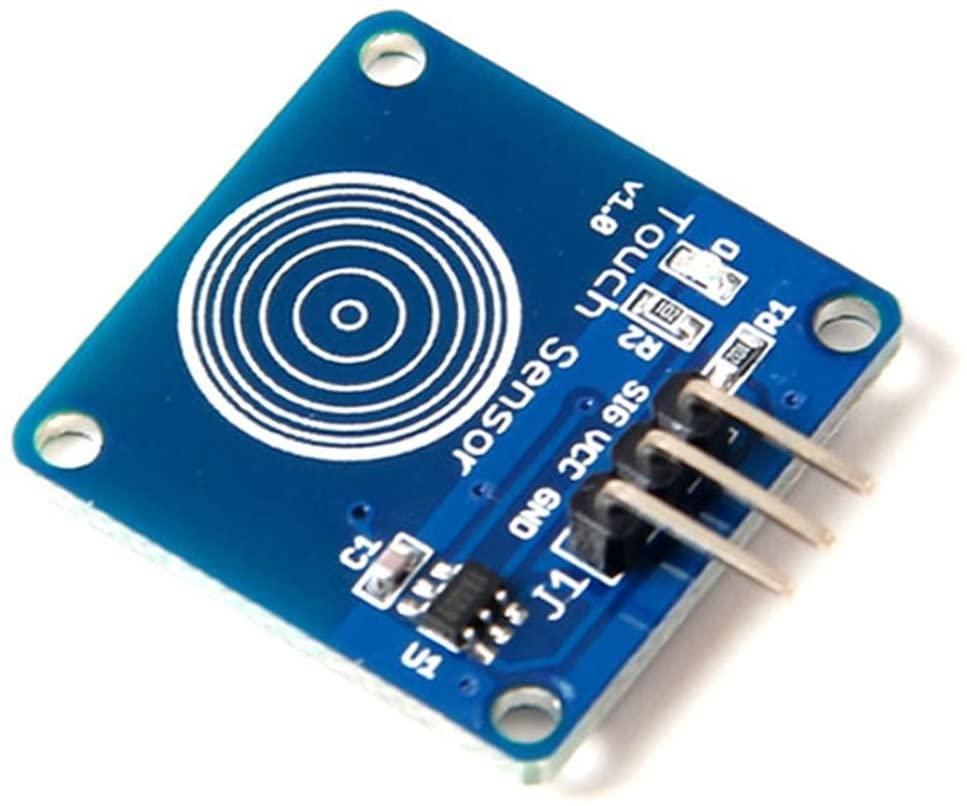
Capacitive touch sensor (or any other button module)
Arduino Uno or any other Arduino board
Visuino program: Download Visuino
Circuit
Connect Relay VCC pin(+) to Arduino 5V pin
Connect Relay GND pin(-) to Arduino GND pin
Connect Relay signal pin(S) to Arduino Digital pin [7]
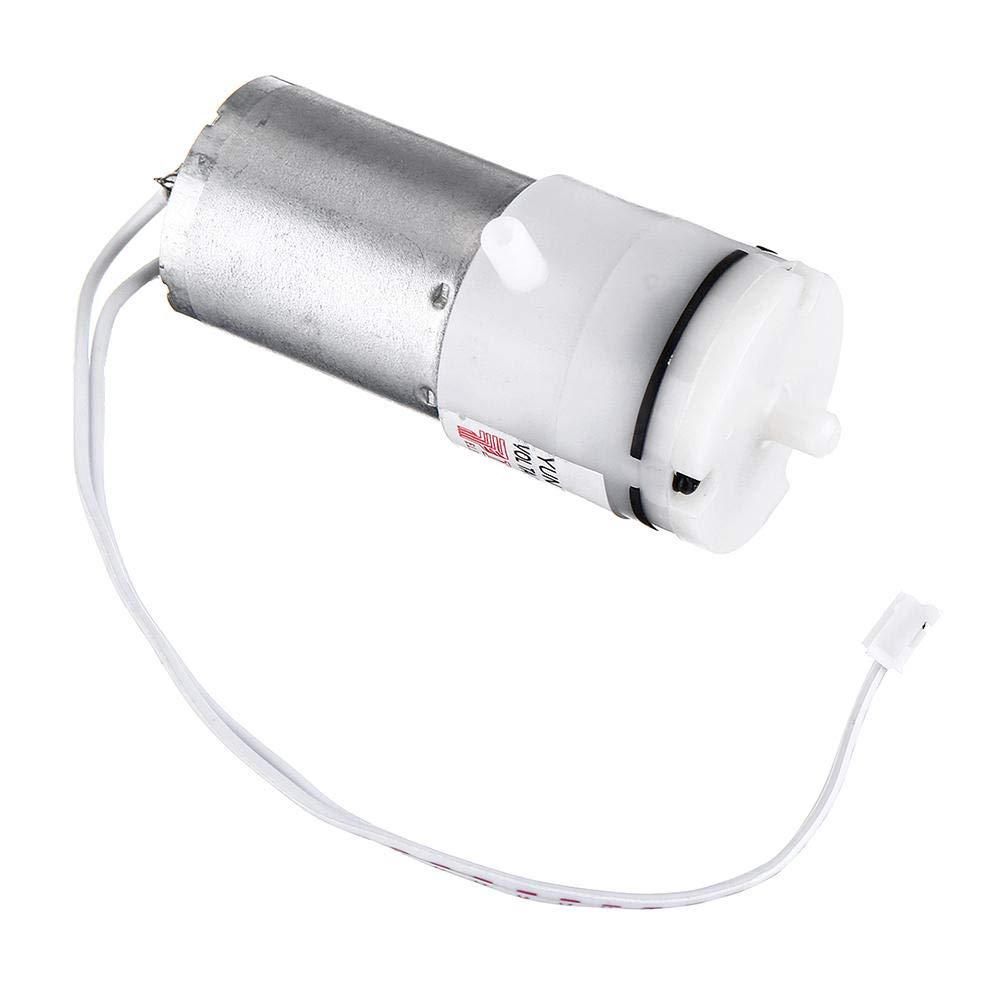
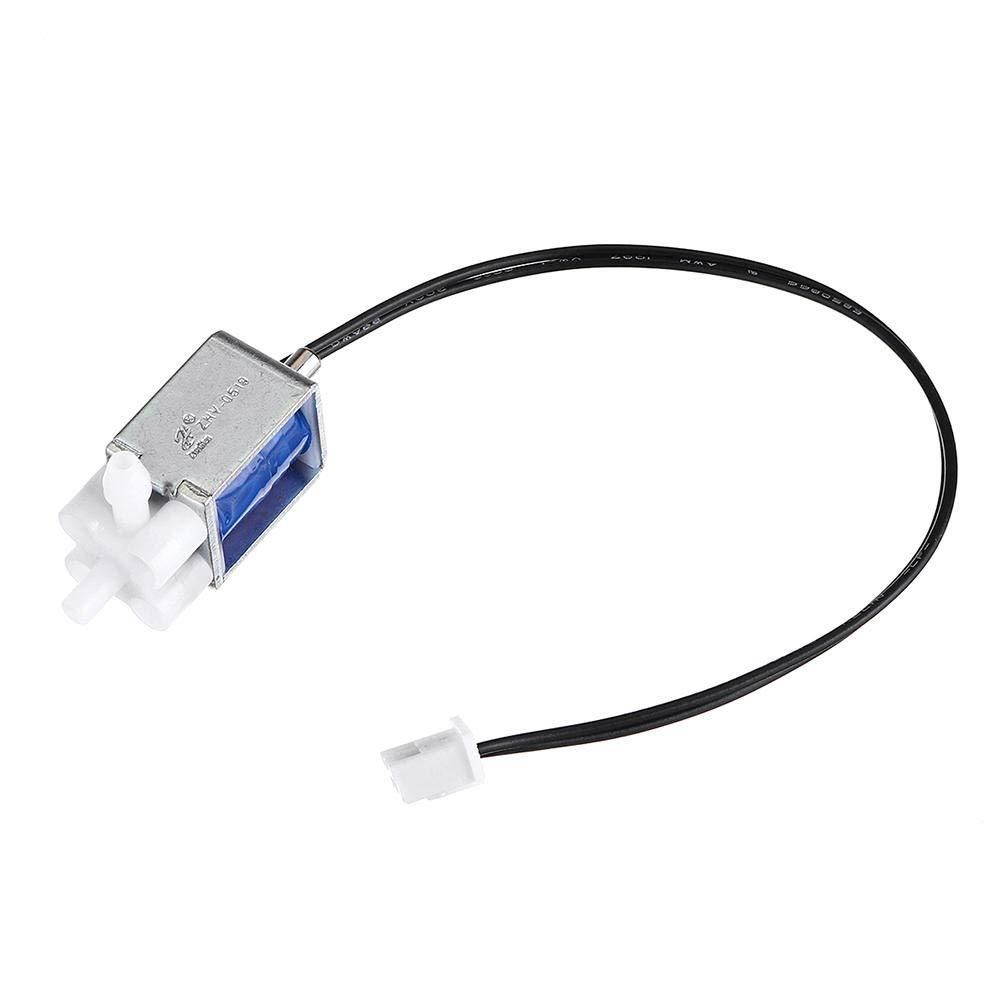
Connect power supply 6V (+) to the pump motor red wire(+) and Valve red wire(+)
Connect power supply 6V (-) to the pump motor black wire(-)
Connect power supply 6V (-) to relay pin(com)
Connect Valve black wire (-) to relay pin (NO)
Connect Capacitive touch button pin [VCC] to Arduino 5V pin
Connect Capacitive touch button pin [GND] to Arduino GND pin
Connect Capacitive touch button pin [SIG] to Arduino digital pin [8]

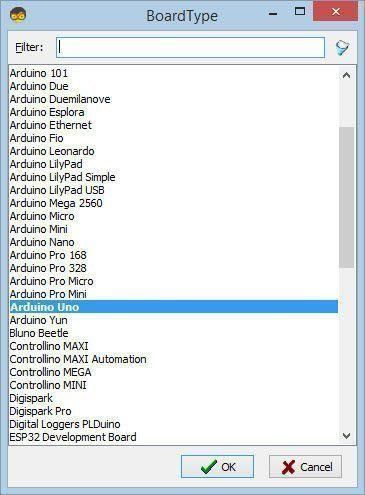
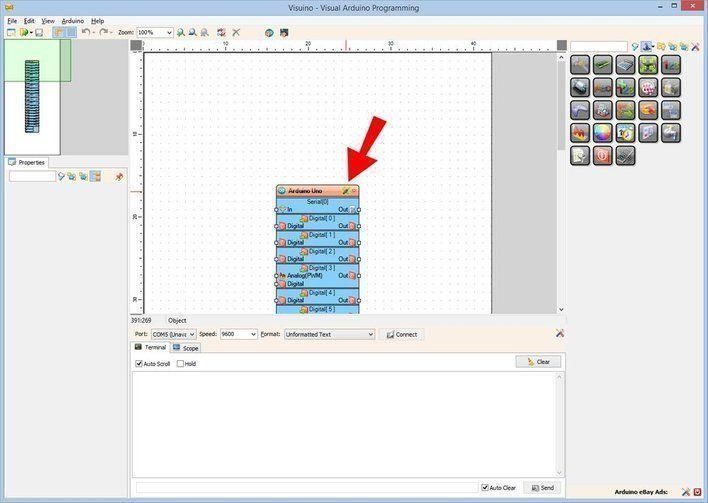
Start Visuino, and Select the Arduino UNO Board Type
The Visuino: https://www.visuino.eu also needs to be installed. Download the free version or register for a free trial.
Start Visuino as shown in the first picture. Click on the "Tools" button on the Arduino component (Picture 1) in Visuino. When the dialog appears, select "Arduino UNO" as shown in Picture 2
In Visuino Add,Set & Connect Components
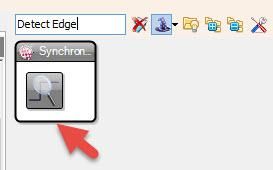
Add "Detect Edge" component
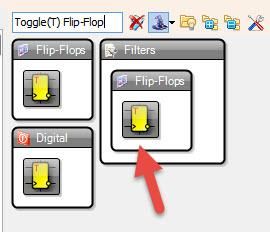
Add "Toggle(T) Flip-Flop" component
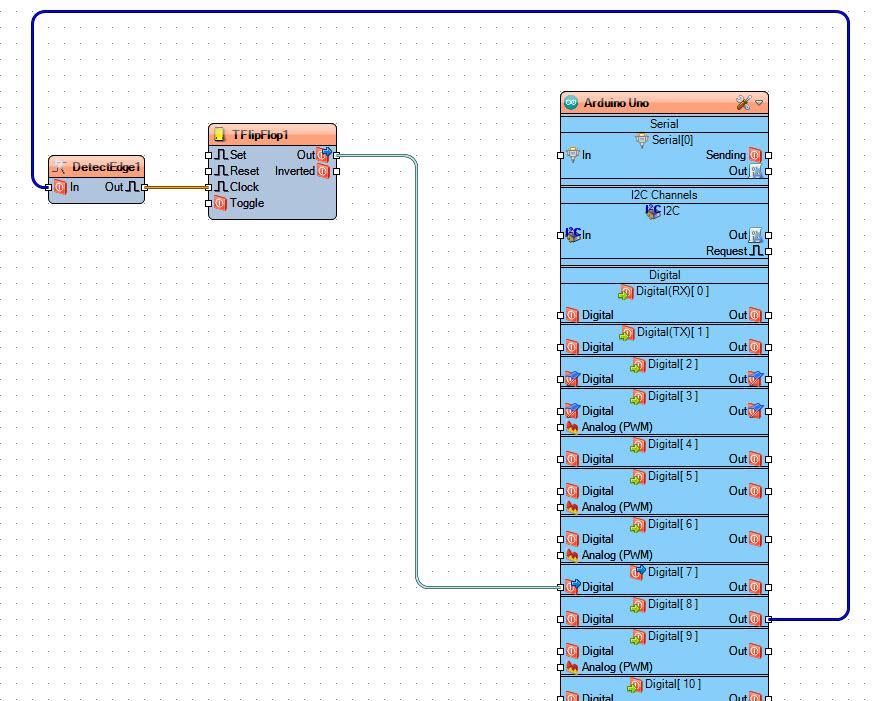
Connect Arduno digital pin 8 to DetectEdge1 pin In
Connect DetectEdge1 pin Out to TFlipFlop1 pin Clock
Connect TFlipFlop1 pin Out to Arduino digital pin 7
Generate, Compile, and Upload the Arduino Code
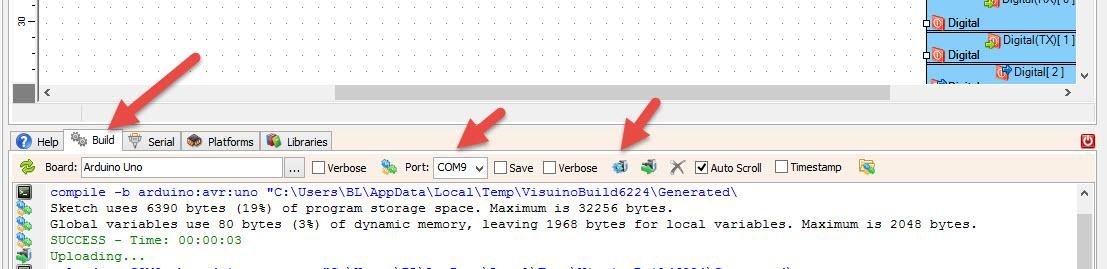
In Visuino, at the bottom click on the "Build" Tab, make sure the correct port is selected, then click on the "Compile/Build and Upload" button.
Play
If you power the Arduino UNO module and press the button, the suction pump will start to run, and you can lift something with it. If you press the button again, it will drop the item.
Congratulations! You have completed your project with Visuino. Also attached is the Visuino project that I created for this; you can download it and open it in Visuino: https://www.visuino.eu