Configuración
 Entrega rápida
 Tipos de pago


 Producto del mercado

Stop Re-Flashing USB Drives: Use Ventoy for OS Installation and Recovery
Introduction
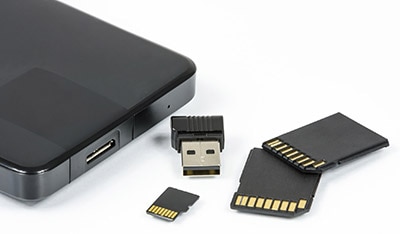
If you're anything like me, you probably have a drawer full of USB flash drives and SD cards that were created for a specific purpose at a specific point in time. One is for Windows, another contains Ubuntu, and somewhere there is even a drive with Raspberry Pi OS on it, and another with a recovery environment for a PC that died a couple of years ago. Then, inevitably, I need a different operating system and find myself opening another imaging utility and waiting while a drive is reformatted yet again.
After doing this more times than I care to admit, I discovered Ventoy. Instead of creating a dedicated USB drive for each operating system, Ventoy installs a boot manager once, and then you can simply copy ISO and IMG files to the drive like any other file. When you boot from the USB drive, Ventoy automatically presents a menu of all available operating systems and tools, allowing you to select the one you want to use.
If you regularly install operating systems, experiment with Linux distributions, build embedded systems, or maintain a collection of recovery tools, Ventoy is a must-have!
What is Ventoy?
Ventoy is a free, open-source tool that creates a multi-boot USB drive capable of directly booting ISO, WIM, IMG, VHD(x), and EFI files. Rather than extracting the contents of an image onto the USB drive, Ventoy simply scans the drive for supported image files and presents them in a boot menu during startup.
According to the Ventoy project, it supports:
- Windows installers
- Linux distributions
- Recovery environments
- Diagnostic utilities
- VMware and Xen images
- Hundreds of other operating system and utility images
Best of all, it’s extremely simple to use:
- Install Ventoy to a USB drive.
- Copy your disk image files onto the drive.
- Boot from the USB drive.
- Select the image you want from the menu.
That's it!

Why I Use Ventoy
The biggest advantage is that you only have to prepare the USB drive once.
With many imaging tools, the process typically looks something like this:
- Download a disk image.
- Launch an imaging utility, such as balenaEtcher or Rufus.
- Select the image file.
- Format the USB drive.
- Wait for the image to be written.
- Repeat the entire process whenever you need a different operating system.
Ventoy turns the USB drive into what is essentially a portable operating system library. Need Windows 11, Ubuntu, Linux Mint, SystemRescue, and MemTest86? Just copy them all onto the same drive and choose whichever one you need at boot time.
No More Reformatting
This is the best part of using Ventoy! Once Ventoy is installed, adding a new operating system is no more complicated than copying a file to a USB drive. There is no imaging process and no need to erase what is already there and wait for the USB drive to be imaged for a new OS.
Multiple Operating Systems on One Drive
I currently keep several different installation and recovery tools on a single flash drive:
- Windows
- Ubuntu
- Linux Mint
- Clonezilla
- SystemRescue
- GParted
When I need one of them, I simply boot the drive and select the required image.
Organize Files However You Want
One feature I just discovered while writing this is the ability to organize images into folders.
Rather than dumping dozens of ISO files into the root of the drive (as I have been doing), you can create folders such as:
/Windows
/Linux
/Recovery
/Utilities
Ventoy will automatically locate supported image files and display them in its menu.

Large ISO Support
Modern operating system images often exceed 4GB. Ventoy supports filesystems such as exFAT and NTFS, making it easy to store several large installation images on the same drive.
Installing Ventoy
Step 1: Download Ventoy
Navigate to the Ventoy website and download the appropriate version for your host operating system.
The project provides packages for both Windows and Linux.
Step 2: Launch Ventoy2Disk
After extracting the archive, run the Ventoy installation utility.
On Windows, this is typically Ventoy2Disk.exe
Select the USB drive you want to use.
Important: Installing Ventoy will erase the selected drive. Ensure you have backed up any important data before proceeding.
Step 3: Install Ventoy
Click Install.
The utility will create the required partitions and prepare the drive for use. Once completed, the drive essentially behaves like a standard storage device, but with an extra partition.

Step 4: Copy Your ISO Files
This is where Ventoy becomes useful.
Simply drag and drop ISO and IMG files into the Ventoy USB drive. No extraction is required, and no additional preparation is needed.
Using the Drive
Using a Ventoy drive is no different than using any other bootable USB device.
- Insert the USB drive into the target system.
- Enter the system's boot menu.
- Select the USB drive.
- Choose the ISO you want from the Ventoy menu.
Ventoy then immediately boots the selected image directly.
Practical Uses
Building PCs
Rather than maintaining separate installation media for various operating systems, you can keep all your preferred installers on a single flash drive.
Embedded Development
If you work with Raspberry Pi, Home Assistant, Ubuntu, Debian, or other Linux distributions, Ventoy provides a convenient way to keep installers and recovery images available in one place.
Repair and Recovery
In addition to installing operating systems, Ventoy is also useful for troubleshooting systems.
Instead of carrying multiple recovery drives, one USB drive can store:
- Recovery environments
- Partition tools
- Backup utilities
- Memory diagnostics
Trying New Linux Distributions
Many of us have downloaded a Linux distribution simply because it looked interesting. Ventoy makes experimentation easy because adding another distribution is as simple as copying another IMG file to the drive.
Final Thoughts
What used to be a drawer full of dedicated installation drives can now live on a single USB stick. Adding a new operating system takes seconds instead of waiting for a flash utility to erase and rewrite the drive, and switching between installers is simply a matter of selecting a different menu option during boot.
If you regularly install operating systems, troubleshoot computers, maintain embedded systems, or simply enjoy experimenting with different Linux distributions, I highly recommend giving Ventoy a try. The first time you drop another OS disk image file or recovery tool onto the drive without going through the disk imaging dance, you will truly understand the benefits of using Ventoy!