Configuración
 Entrega rápida
 Tipos de pago


 Producto del mercado

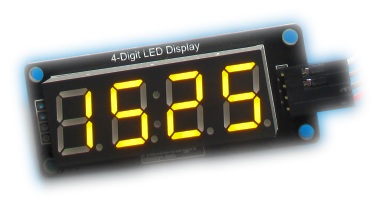
4-Digit Countdown Timer (Minutes and Seconds) - Arduino Tutorial
License: GNU Lesser General Public License Displays Microcontrollers Arduino ESP32
We will learn how to make a 4-Digit Countdown Timer displaying Minutes and seconds using Arduino.
Watch the Video!
Learn more about Visuino: What is Visuino
What You Will Need
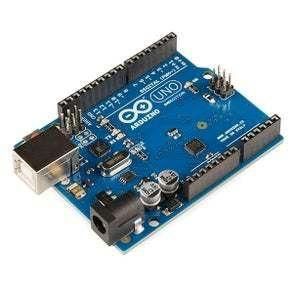
Arduino Uno or any other Arduino board
Visuino software: Download here
Circuit
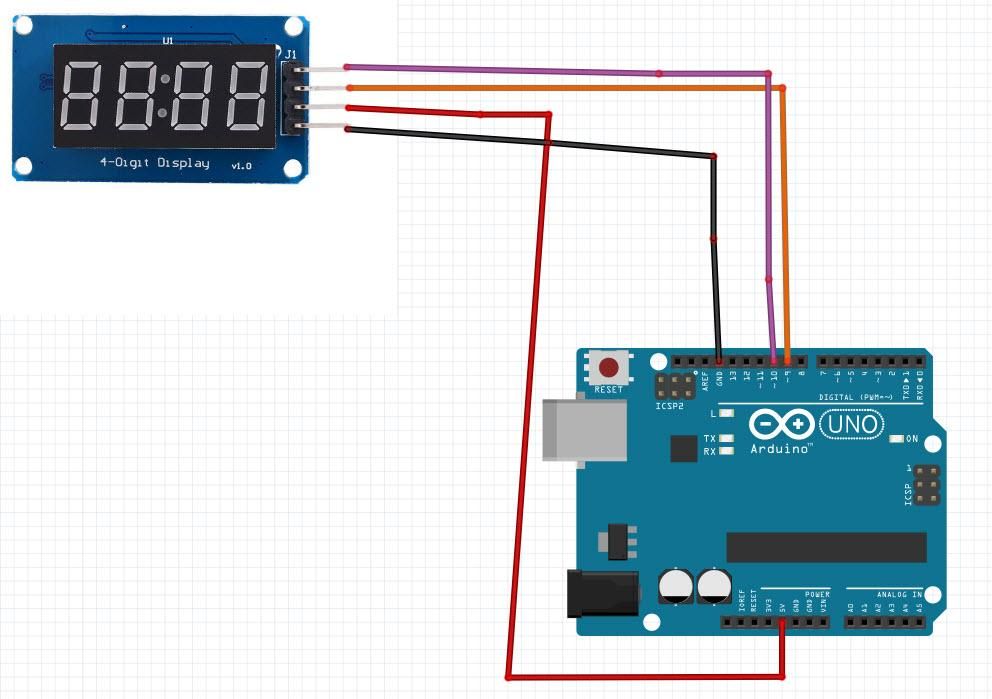
Connect LED Display pin[CLK] to Arduino digital pin[10]
Connect LED Display pin[DI0] to Arduino digital pin[9]
Connect LED Display pin[GND] to Arduino pin[GND]
Connect LED Display pin[VCC] to Arduino pin[5V]
Start Visuino, and Select the Arduino UNO Board Type
The Visuino: https://www.visuino.eu also needs to be installed. Download the free version or register for a Free Trial.
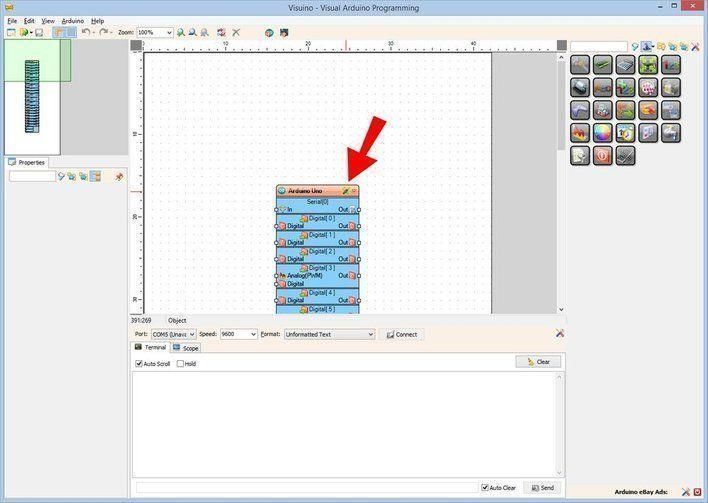
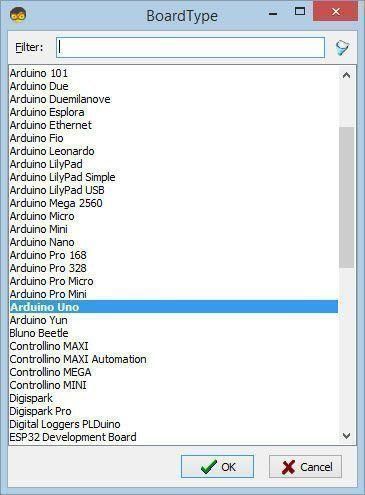
Start Visuino as shown in the first picture. Click on the "Tools" button on the Arduino component (Picture 1) in Visuino. When the dialog appears, select "Arduino UNO" as shown in Picture 2
In Visuino ADD Components
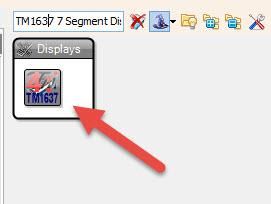
Add "TM1637 7 Segment Display 4 Digits Module + 2 Vertical Points (CATALEX)" component
Add "Up/Down Counter" component
Add "Pulse generator" component
Add "Divide Integer By Value" component
Add "Multiply Integer By Value" component
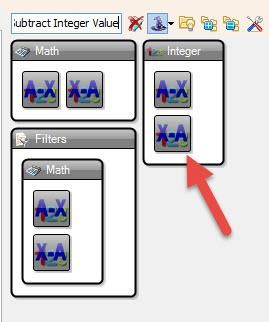
Add "Subtract Integer Value" component
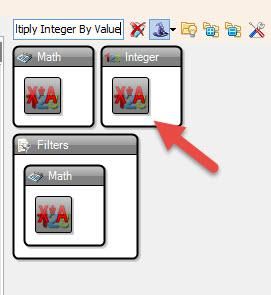
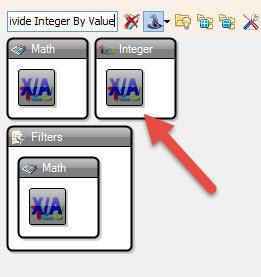
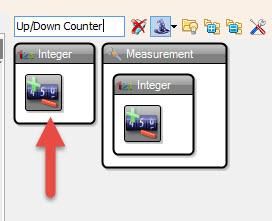
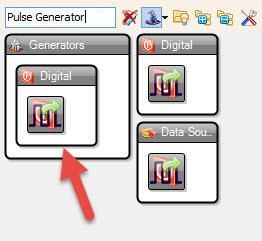
In Visuino Set Components
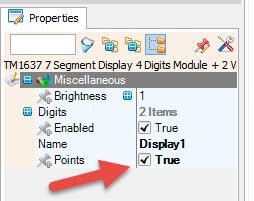
Select "Display1" and in the properties window set "Points" to True
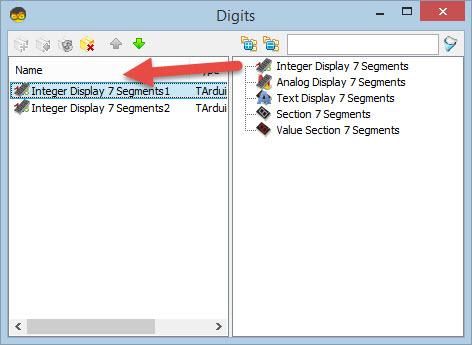
Double click on "Display1" component and in the "Digits" window
drag "Integer Display 7 Segments" to the left side
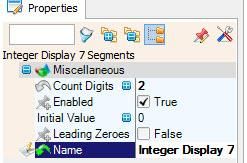
On the left side of the "Digits" window select "Integer Display 7 Segments1" and in the properties window set "Count Digits" to 2
drag another "Integer Display 7 Segments" to the left side
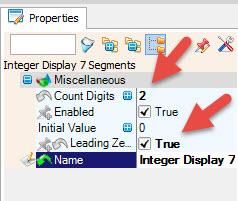
On the left side of the "Digits" window select "Integer Display 7 Segments2" and in the properties window set "Count Digits" to 2 and "Leading Zeroes" to True
Close the "Digits" window
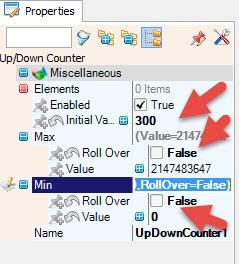
Select "UpDownCounter1" and in the properties window set:
"Initial Value" to 300 <<< This is the Amount of seconds that it will Count Down, change it to your desired time
"Max > Roll Over" to False
"Min > Roll Over" to False
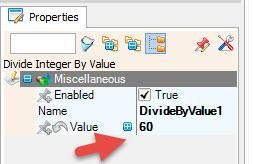
Select "DivideByValue1" and in the properties window set Value to 60
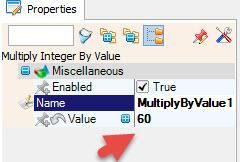
Select "MultiplyByValue1" and in the properties window set Value to 60
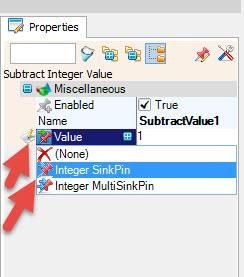
Select "SubtractValue1" and in the properties window select Value and click on the Pin Icon and select "Integer SinkPin"
In Visuino Connect Components
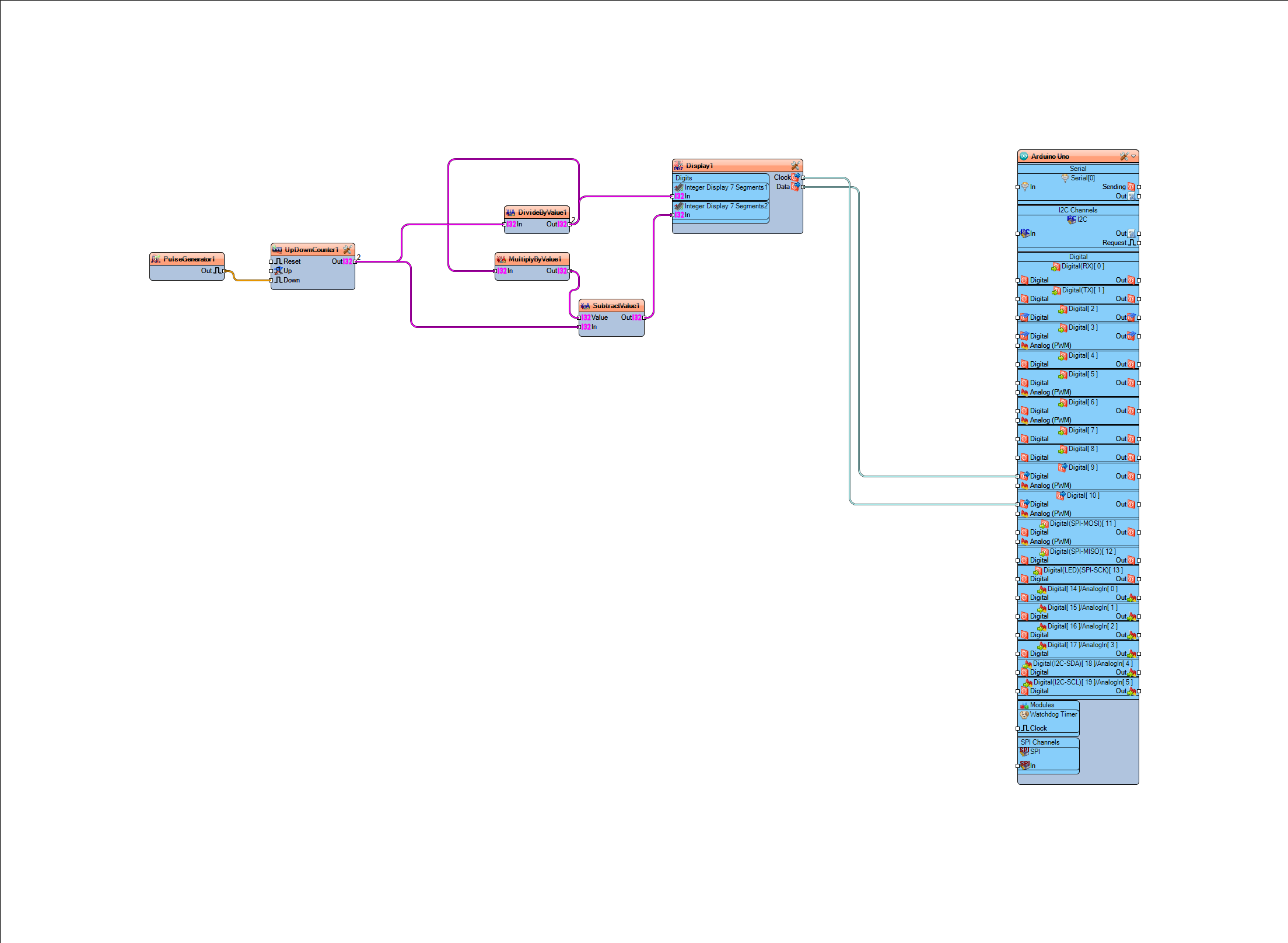
Connect "PulseGenerator1" pin Out to "UpDownCounter1" pin Down
Connect "UpDownCounter1" pin Out to "DivideByValue1" pin In and "SubtractValue1" pin In
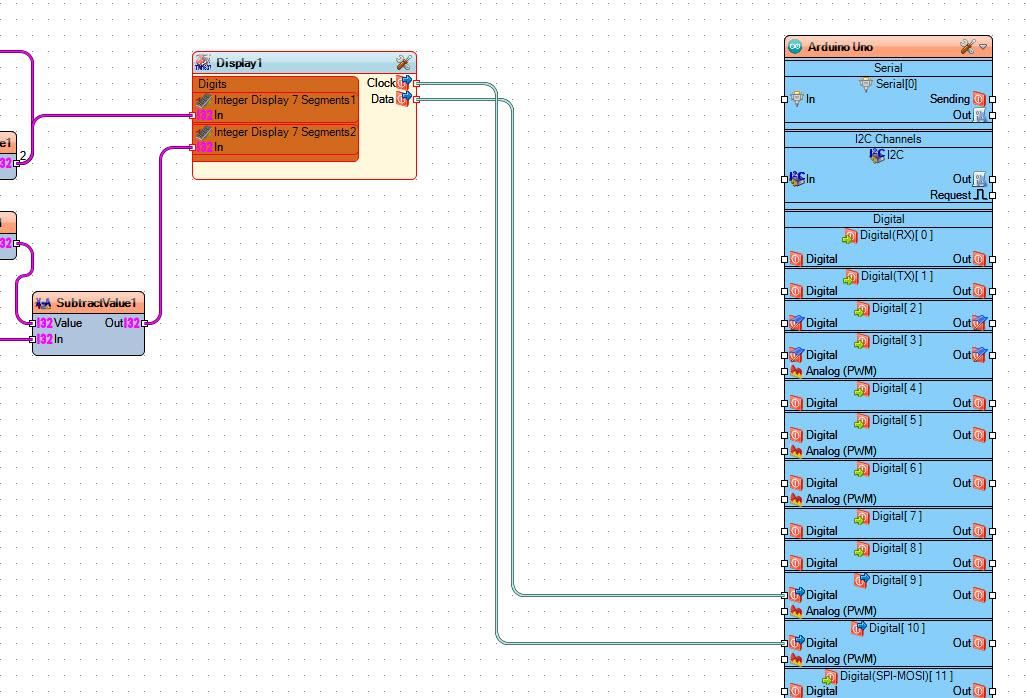
Connect "DivideByValue1" pin Out to "MultiplyByValue1" pin In and "Display1" > "Integer Display 7 Segments1" pin In
Connect "MultiplyByValue1" pin Out to "SubtractValue1" pin Value
Connect "SubtractValue1' pin Out to "Display1" > "Integer Display 7 Segments2" pin In
Connect "Display1" pin Clock to Arduino digital pin 10
Connect "Display1" pin Data to Arduino digital pin 9

Generate, Compile, and Upload the Arduino Code
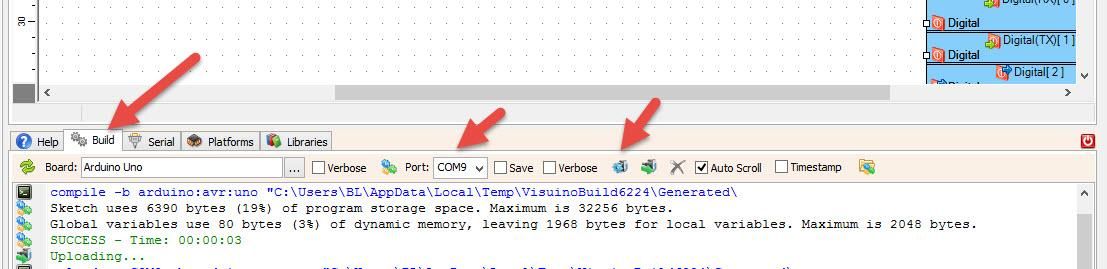
In Visuino, at the bottom, click on the "Build" Tab, make sure the correct port is selected, then click on the "Compile/Build and Upload" button.
Play
If you power the Arduino module, the LED Display will start to Count Down.
Congratulations! You have completed your project with Visuino. Also attached is the Visuino project that I created for this; you can download it and open it in Visuino: https://www.visuino.eu